
25
Oct
OpenShot 4.1: Type, Create, Automate
Written by on in Releases .
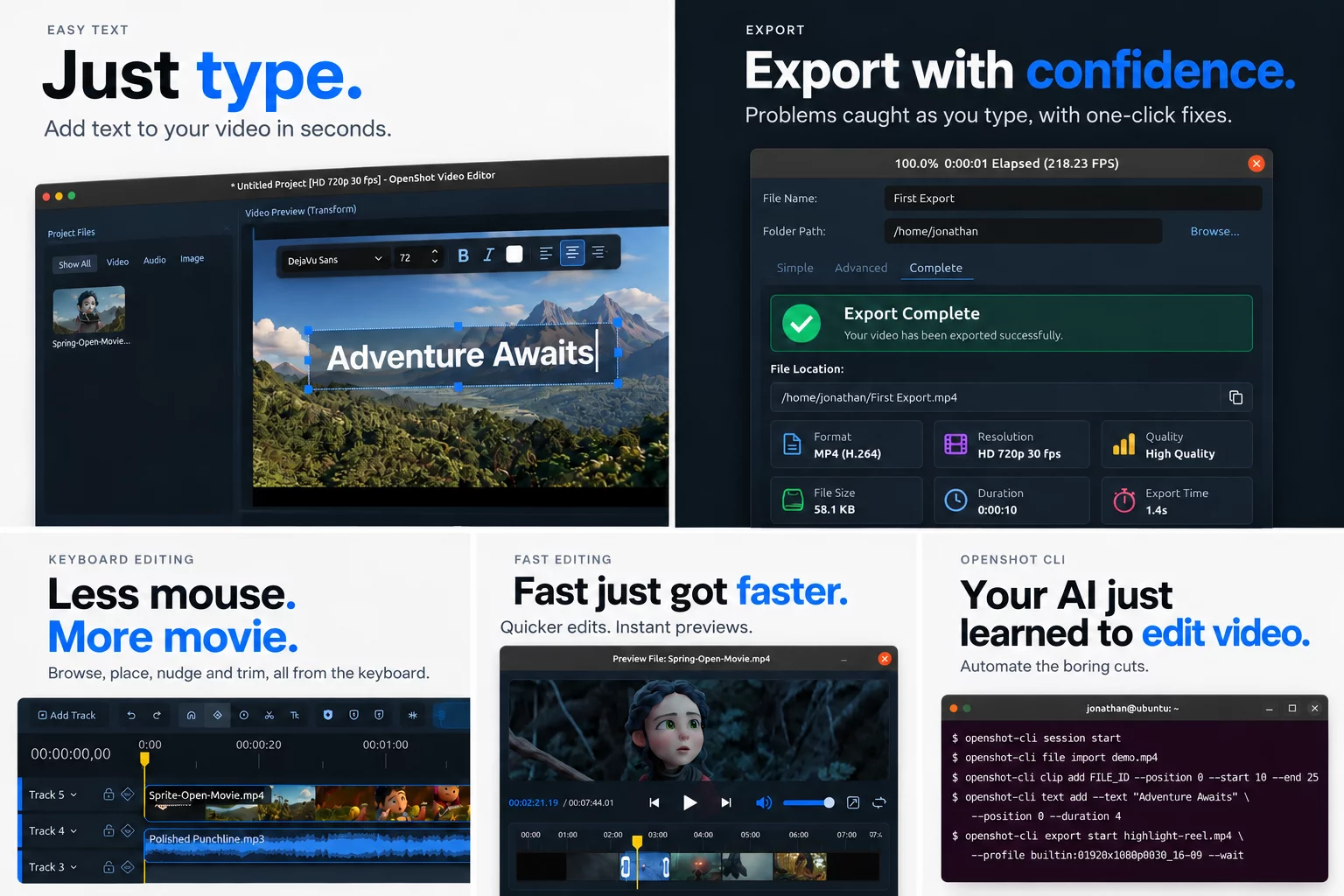
OpenShot 4.1 is here! Text comes to life directly on your video, heavy 4K+ footage gets automatically optimized for high-performance editing, and our new command-line interface (CLI) lets you or an AI agent like Claude Code or Codex build entire videos. From the first title to the final export, you’re in control.
Building on the recording and color tools introduced in OpenShot 4.0, this release gives you new ways to create and more power to get things done. Open-source and available for Windows, macOS, and Linux. Three releases in three months. Let’s go!
OpenShot 4.1 Highlights
- Native text editing: Add and style text directly on your video, no external editor required.
- Auto-Optimize: OpenShot spots heavy footage and creates small, fast optimized copies for instant previews and seeking, while your export keeps full 4K quality.
- CLI automation: Automate entire edits with scripts or AI agents like Claude Code and Codex.
- Smarter exports: Export settings are checked as you edit, with clear explanations and one-click fixes. Settings stay editable after every export, even a failed one, so you can fix a mistake and export again right away.
- Keyboard editing and previews: More of the editor works from the keyboard, and Preview and Split File get a redesigned range editor.
- ARM64 builds for Linux: Install OpenShot on ARM64 computers and servers from our daily PPA (all supported Ubuntu versions) or the edge Snap channel.
- Auto Keyframes and timeline refinements: Animate as you edit, resize the timeline smoothly, and choose how many tracks fit on screen.
- Faster editing and better audio: Quicker timeline edits, more responsive previews, smaller project files, and mono audio at full level.
Native Text Editing: Type Directly on Your Video
Labels, lower thirds, and quick captions are some of the most common things people add to a video. Until now, each one meant opening the Title editor. In OpenShot 4.1, click Tt on the timeline toolbar, choose Title → Text (or press Shift+T) and a text clip appears at the playhead with its placeholder already selected. Start typing, press Enter or click away when you are done, and use the transform handles to move, scale, or rotate it.
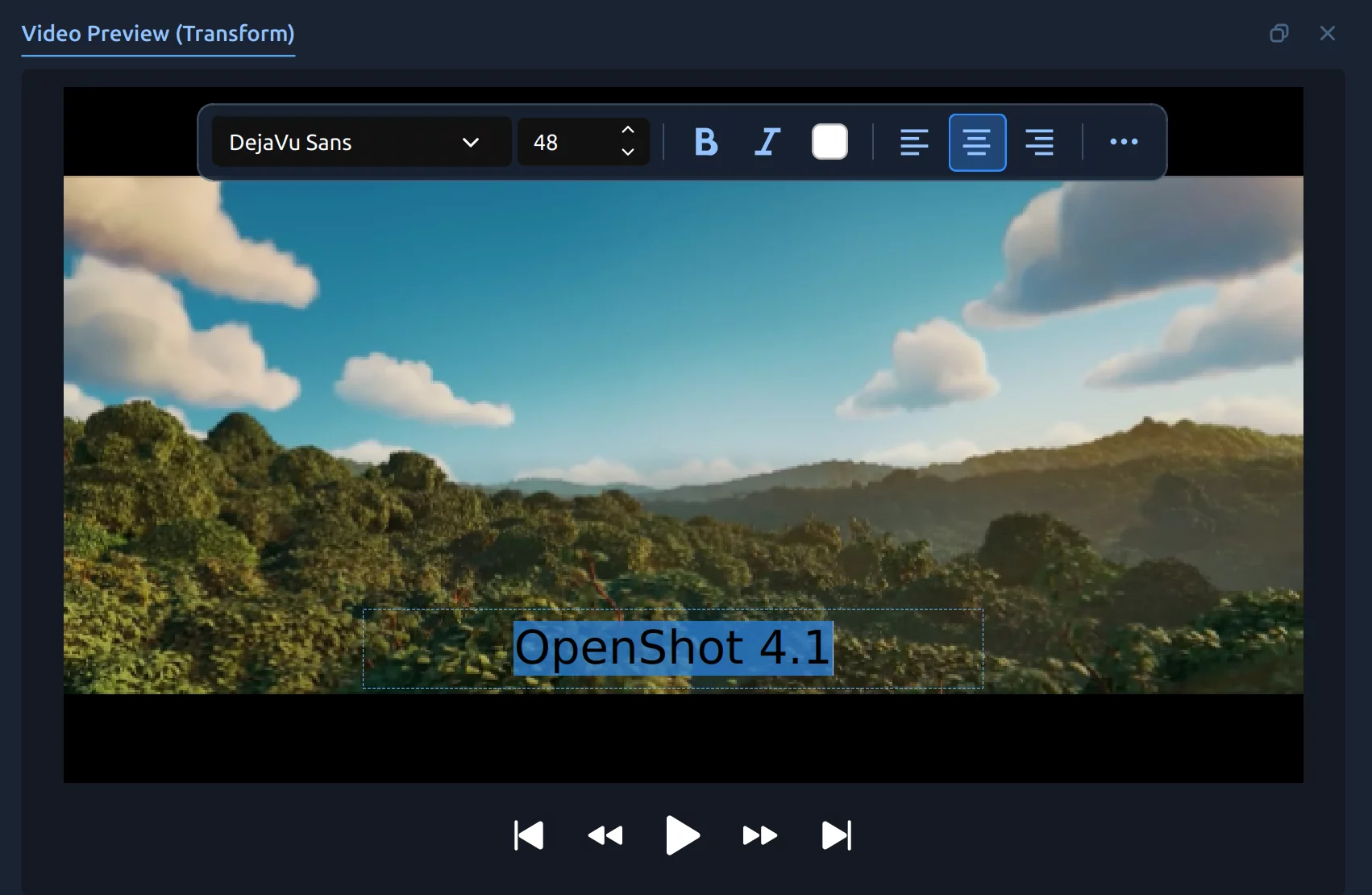
While you type, a small style bar floats over the preview with the font, size, bold, italic, color, and alignment. It moves out of the way if it would cover your text. To edit existing text, double-click it in the preview or select its clip and press Enter.
Edit Style, copy styles, and animate text
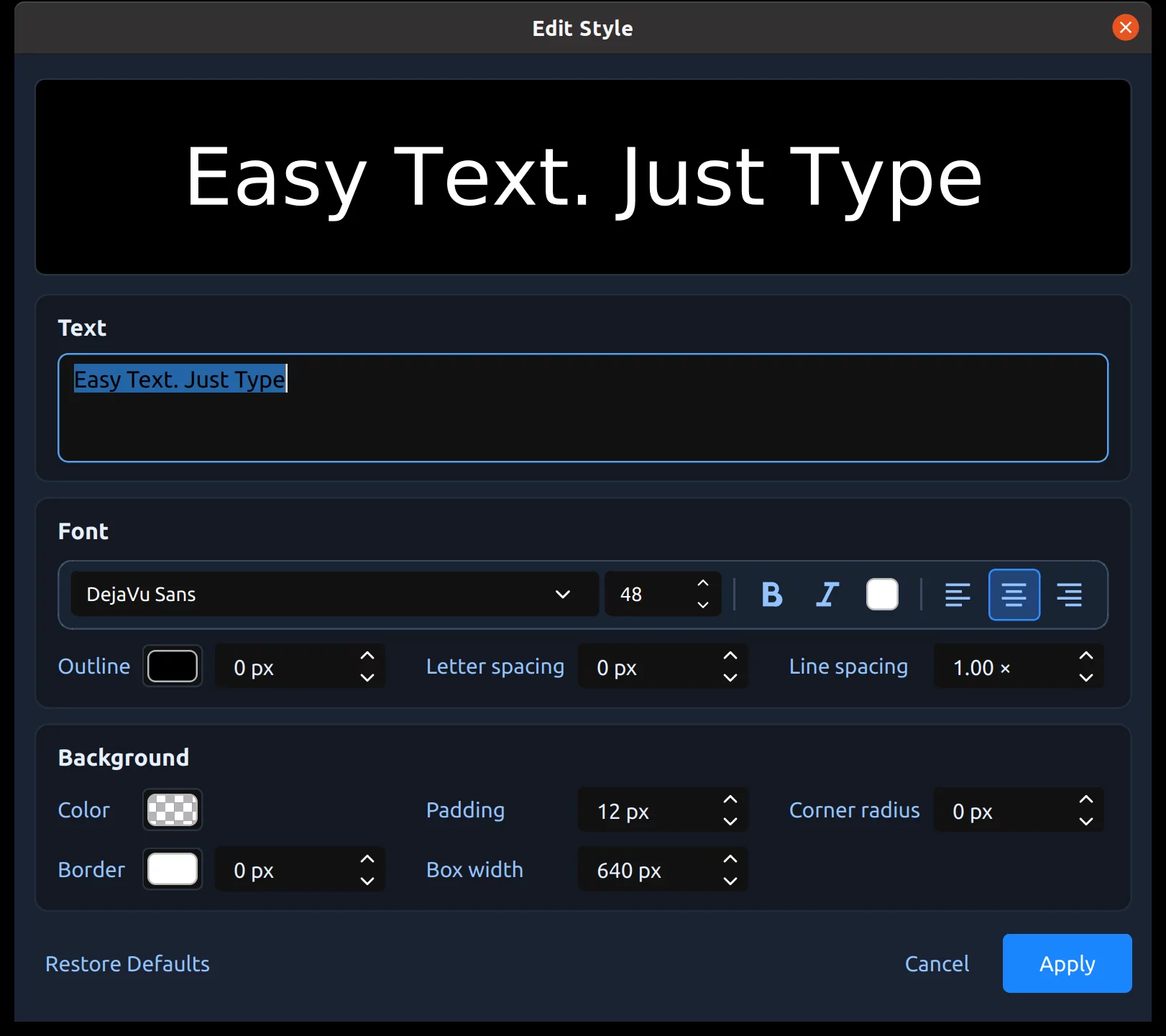
The redesigned Edit Style dialog has every text setting in one place: outline, background, padding, rounded corners, border, box width, and letter and line spacing. Outlines are drawn behind the letters, so a thick outline grows outward instead of covering them. For hollow letters, make the text color transparent and only the outline is drawn.
New text starts with the style you used last, so a series of titles stays consistent. Select several text clips to restyle them together, or use Copy → Text Style and Paste to give other clips the same look while each keeps its own words. Colors, outlines, borders, and corner radius can also be animated with keyframes, like any other property.
Text is drawn by OpenShot's video engine, so it needs no image files and stays sharp when you scale it up. The Title editor and Captions are still available for SVG titles and timed subtitles.
Auto-Optimize: Fast Editing, Full-Quality Export
High-resolution footage demands serious processing power. Every frame is large and slow to decode, so previews lag, scrubbing stalls, and every seek makes you wait. Optimized videos fix this at the source: OpenShot creates a much smaller copy of each slow video (720p by default) that decodes, previews, and seeks far faster, so editing feels instant. When you export, OpenShot uses your original files, so your final video keeps its full 4K quality.
OpenShot 3.5.1 introduced optimized videos, and OpenShot 4.1 now finds the footage that needs them. OpenShot already times each video's first thumbnail, so it can identify slow files without any extra decoding. When it finds one, a banner asks whether to optimize this project's videos automatically.
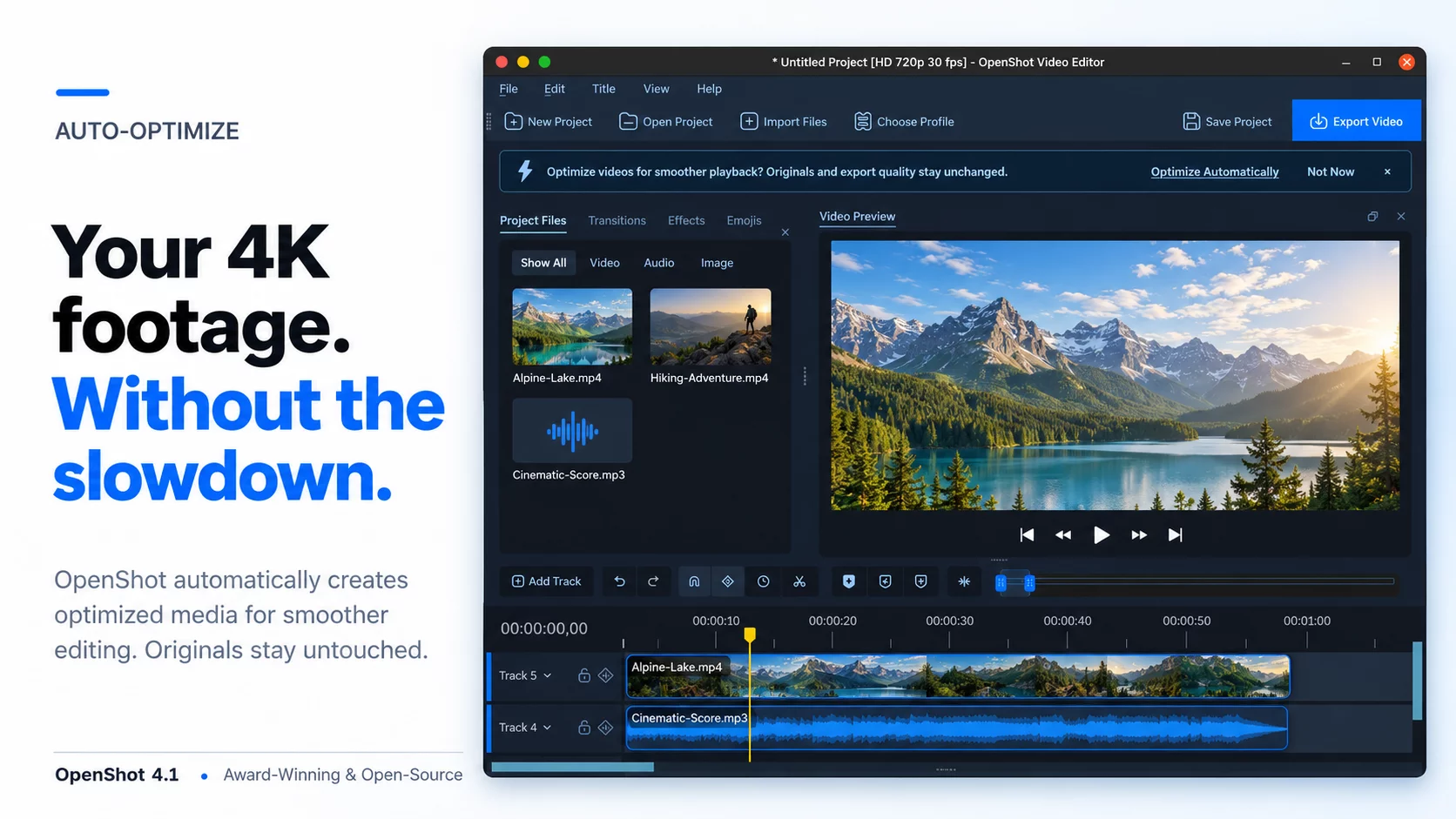
Accept once, and slow videos you import later are added to the queue too, while you keep editing. Progress appears on each file in Project Files. Older projects are checked quietly in the background. You can change the choice at any time with File → Auto-Optimize (Ctrl+Alt+O), or set it to Ask, Always, or Never in the new Optimize preferences tab. Thumbnails and the Razor and trim previews now use optimized copies as well.
Edit and Export from the Command Line (Experimental)
OpenShot 4.1 includes an experimental command-line interface for automating repetitive work, batch exports, and scripted or AI-assisted editing. Start a session, then import files, add and trim clips, apply effects and the same Motion, Look, Speed, and Waveform presets as the clip menu, set keyframes, add text, and export. Results are returned as JSON, so they are easy to use in scripts.
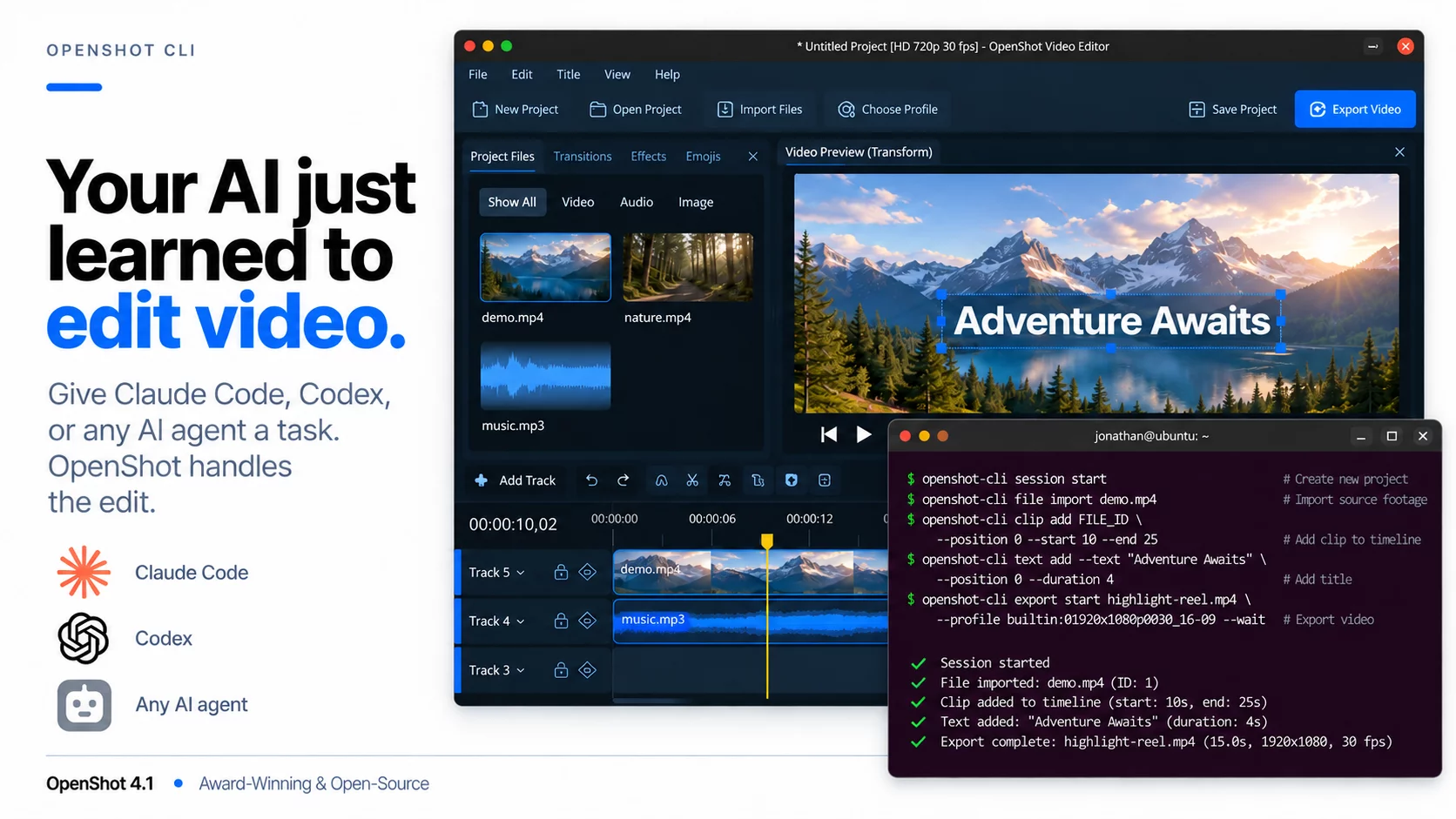
Because every command is documented in its own help and returns structured results, AI coding agents such as Claude Code and Codex can drive OpenShot too. Describe the video you want, and the agent can import your footage, build the timeline, and export the result.
Give your agent the full picture
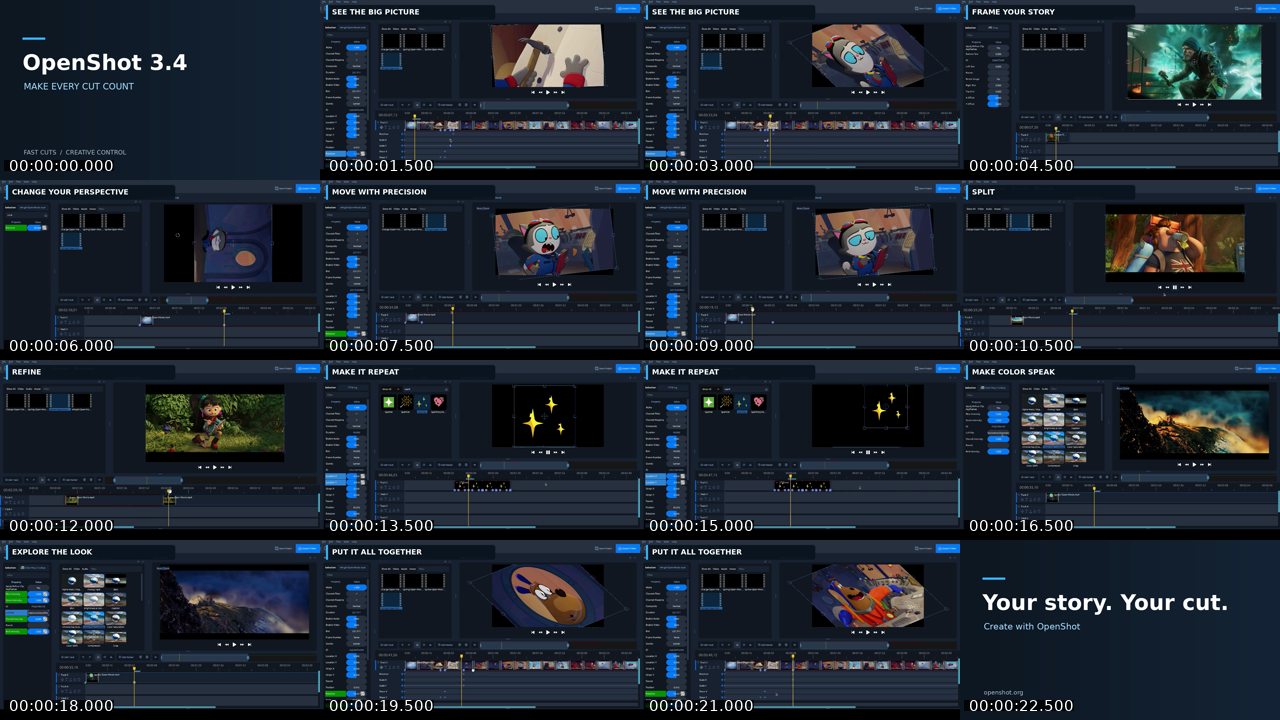
Agents can inspect the edit as they work. The CLI can return thumbnail strips, audio waveform data, and timeline previews at a chosen position and zoom level. An agent can survey the whole sequence, zoom in on a tricky cut, or examine audio levels before making its next move.
Contact sheets bring sampled frames together in one image, with timestamps that connect each frame to the video. That gives humans and agents more context for complex edits, without opening and playing every clip.
Your agent edits. You stay in control.
The CLI can work alongside you in the open editor or run headless, without a window. On a desktop, an agent can bring the project into view at any point with openshot-cli session show, keeping the same timeline, undo history, and active export jobs. Review the result, make your own adjustments, and let the agent handle the next task. It is the same live project, so you and your agent can work together without passing files back and forth.
Running on a server without a display? Save the project as an .osp file and open it in the desktop editor to continue.
openshot-cli session start
openshot-cli file import /home/me/Videos/clip.mp4
openshot-cli clip add FILE_ID --position 0 --start 10 --end 17
openshot-cli clip motion CLIP_ID --preset slide-in-left
openshot-cli export start /home/me/Videos/video.mp4 --wait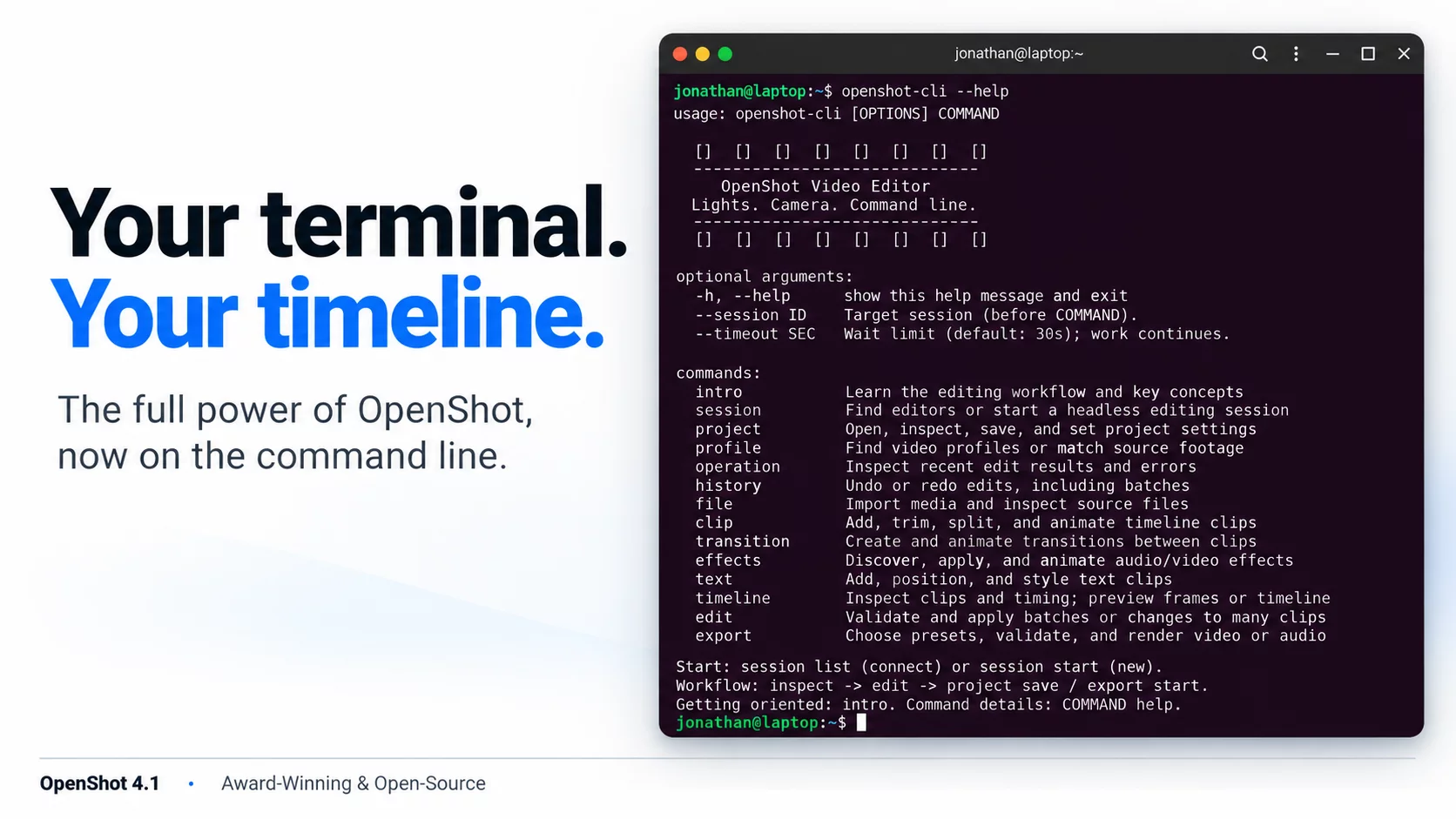
openshot-cli --help to see every command.Export settings can be checked from the command line with openshot-cli export validate, which runs the same checks as the Export dialog. See the new User Guide chapter for sessions, examples, and the full command reference. This feature is experimental, and we would love to hear how you use it.
Export Settings Checked as You Edit
Until now, an incompatible combination of export settings, such as MP3 audio in a WebM file, only showed up as a failed export after you clicked Export. OpenShot 4.1 checks your settings with FFmpeg in the background as you change them, without writing a file. A problem field is outlined in red, its tab shows a badge, and a problems button lists each issue with FFmpeg's own explanation and a one-click fix (or Fix All). Export stays disabled until every error is fixed.
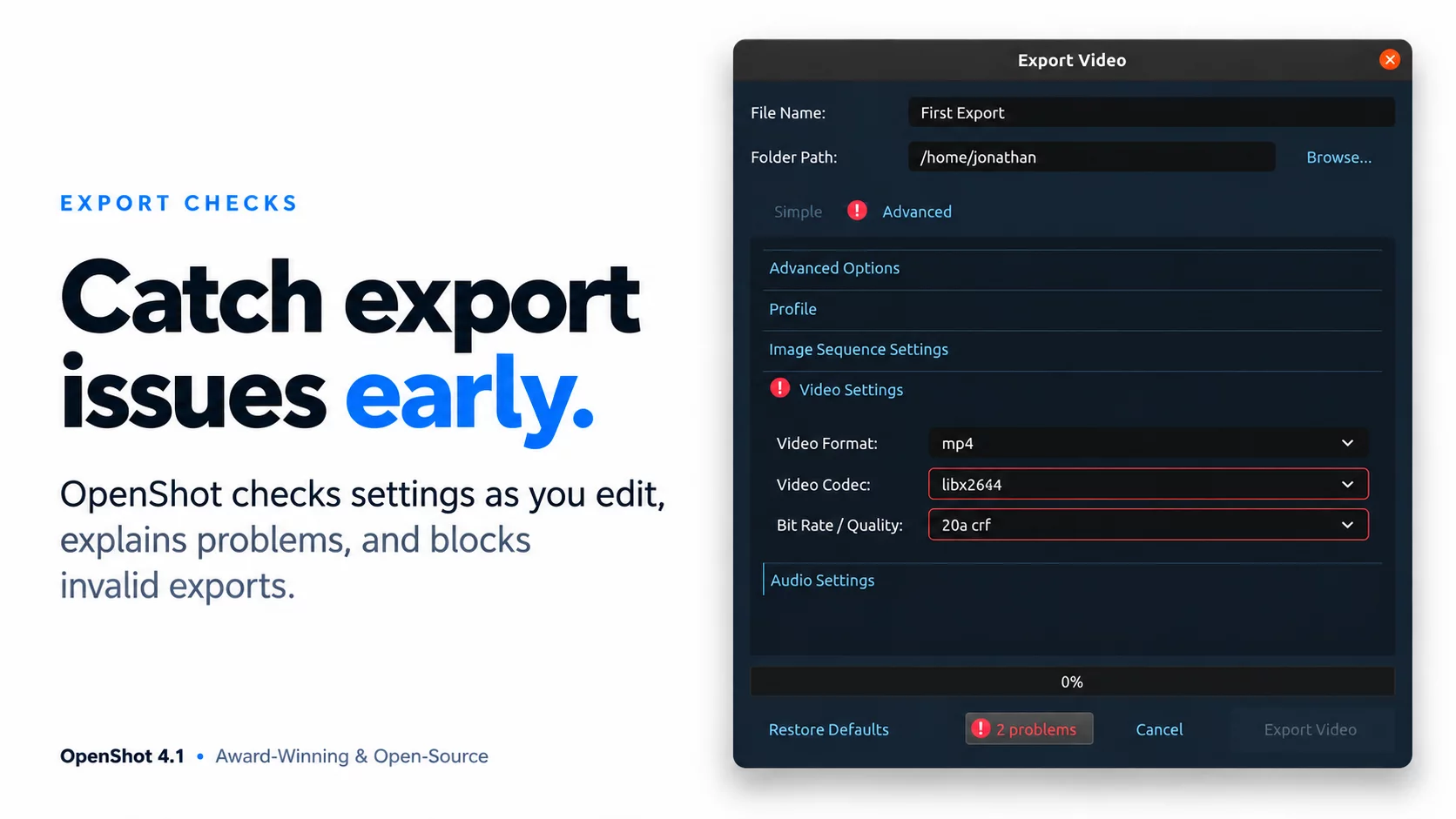
Format, codec, bit rate, and sample rate fields now offer menus of compatible choices. More lists every format and codec available, grouped into categories such as Sharing & Playback, Editing & Mastering, and Hardware Accelerated.
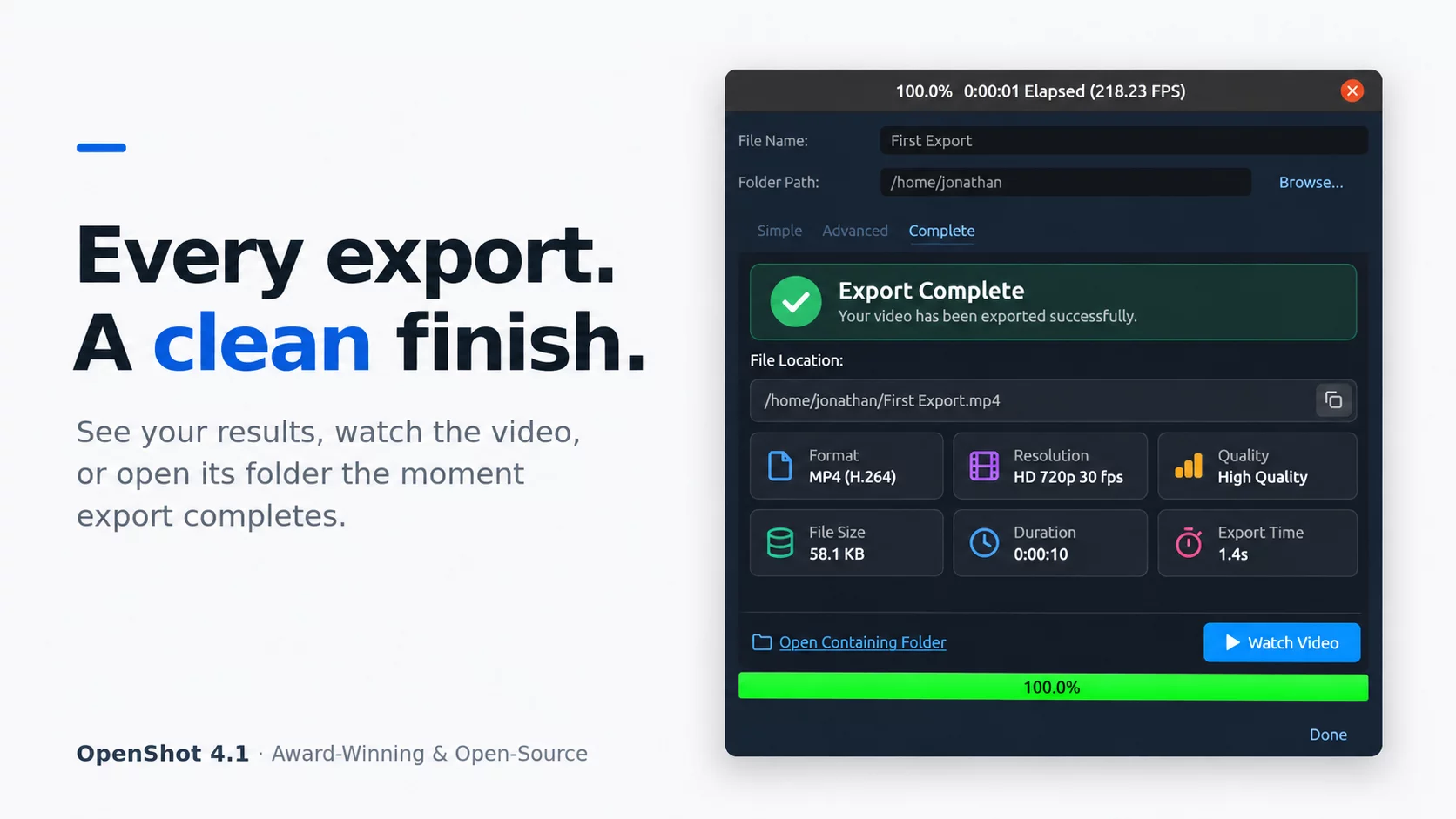
When an export finishes, a new Complete tab summarizes the result: where the file was saved, its format, resolution, quality, size, and how long it took. Watch Video and Open Containing Folder are one click away. If an export fails, the tab explains why, and Copy Error Details makes the problem easy to report. Your first successful export also gets a burst of confetti. 🎉
Fix it and export again
Typed the wrong file name? Picked a codec your player cannot open? Wanted a 1080p copy as well as 720p? After every export, finished or failed, your settings stay right where you left them and stay editable. Change what you need and click Export Video again. You no longer need to close the dialog, reopen it, and set everything up from scratch, so a silly typo or wrong codec costs you seconds instead of starting over.
Keyboard Editing and Redesigned Previews
More of OpenShot now works without the mouse. You can browse Project Files, Effects, Transitions, and Emojis, place items on the timeline, nudge clips, and move between docks from the keyboard. Holding a nudge key is grouped into a single undo step. The User Guide has a new keyboard chapter with every shortcut.
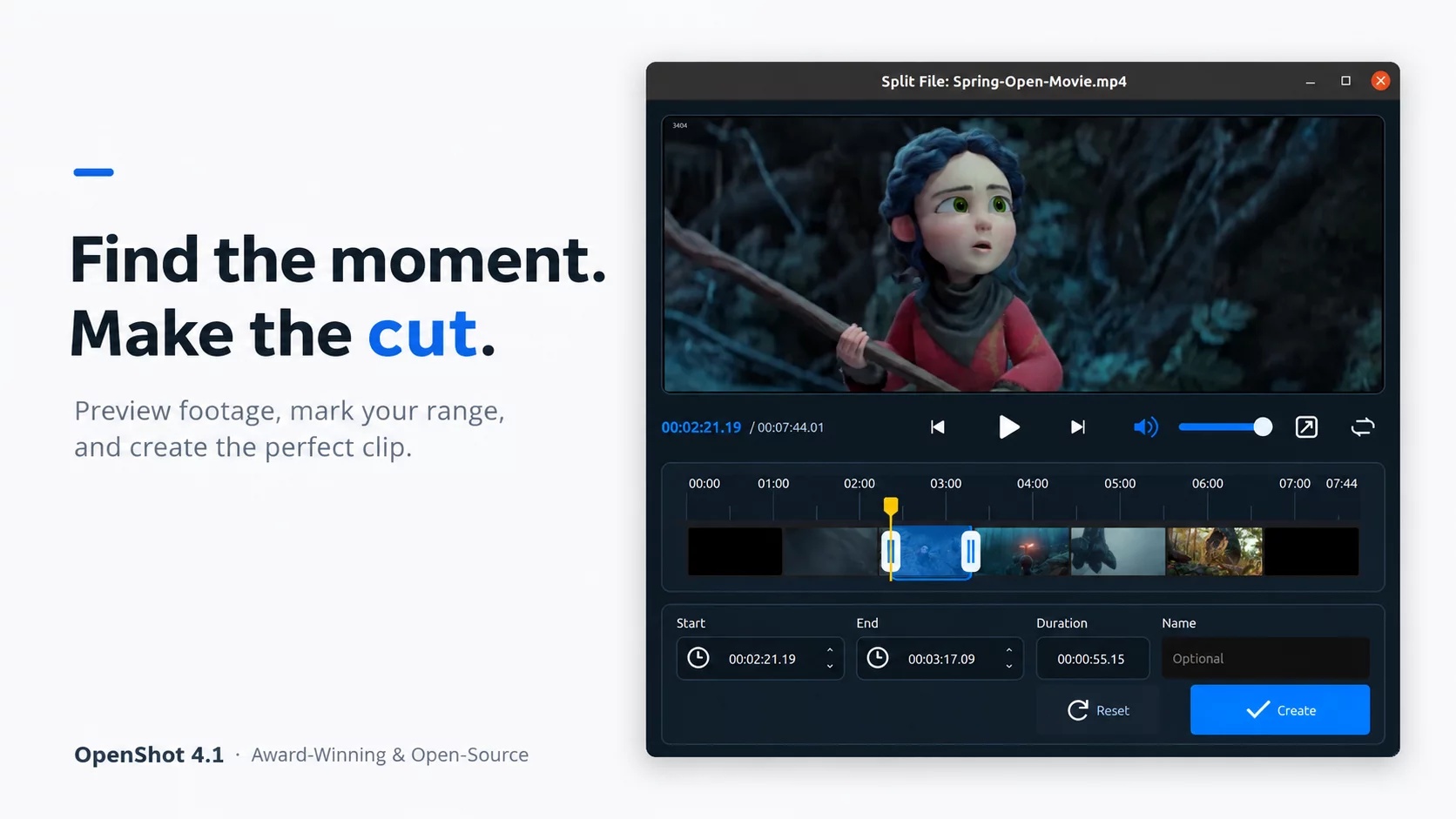
Preview File, Preview Clip, and Split File now share a redesigned window. Playback starts automatically, and a filmstrip shows the selected range. Set Start and End with I and O, or type exact timecodes and durations. Split File stays open so you can create several segments in a row. Preview windows are reused instead of piling up, and they remember their size and volume per project.
ARM64 Builds for Linux
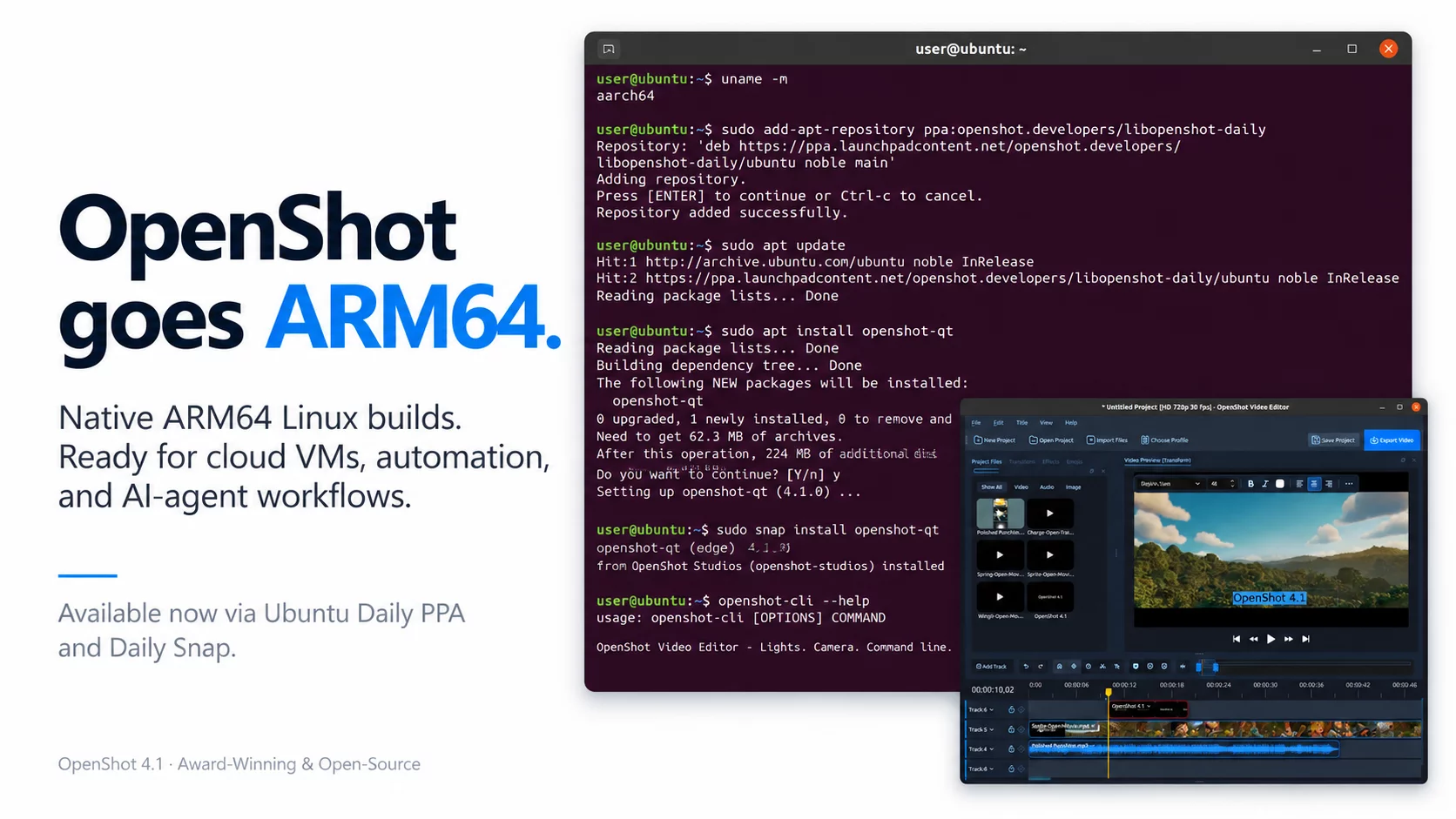
OpenShot now runs natively on ARM64 Linux, including ARM desktops, laptops, and cloud servers. ARM64 builds are available today from our daily PPA and the edge channel of our Snap, so you can install OpenShot with your package manager and receive updates automatically.
Working toward ARM64 on macOS and Windows
We are also working toward native ARM64 builds for Apple Silicon Macs and Windows on ARM. All three OpenShot libraries now build and are tested on ARM64, but these are not official downloads yet. For now, the current Mac and Windows builds remain the recommended downloads on those systems. We have also updated compatibility with FFmpeg 7 and newer, OpenCV 5, and Qt 6.
Daily PPA
Our daily PPA now includes ARM64 packages for every Ubuntu version it supports. It is built from the latest OpenShot source code, so you will also get new improvements as soon as they land:
sudo add-apt-repository ppa:openshot.developers/libopenshot-daily
sudo apt update
sudo apt install openshot-qt
Edge Snap
The official OpenShot Snap introduced in 4.0.1 is now also built for ARM64 on the edge channel, with automatic updates and desktop menu integration:
sudo snap install openshot-qt --edgeAuto Keyframes and Timeline Refinements
With Auto Keyframes on, move the playhead and change a property, and OpenShot records a keyframe there. This works in the Properties dock and with the transform handles in the preview. Toggle it with the diamond button on the timeline toolbar, or turn it off at startup in Preferences if you prefer to place keyframes yourself.
Resizing the timeline is now smooth, with the zoom slider and scrollbars kept in sync. A new Track Size preference (Minimal, Compact, Default, or Relaxed) controls how many tracks fit on screen, and you can set the default number of tracks for new projects. Hover and drag feedback is clearer, and checkboxes throughout the app are now themed toggles. The Retro and Humanity Dark themes have also been refreshed.
Faster Editing, Smaller Projects, and Better Audio
Common timeline edits now do less work behind the scenes, so moving, trimming, and splitting clips feels quicker. Previews start sooner after a seek and play back more steadily. Waveforms are now stored in compressed files outside your project, so project files are smaller and faster to save and open. Frames saved with Save Current Frame use lossless PNG compression for smaller files.
Mono audio now plays at full level instead of being quieter than stereo, and audio no longer clips early when several clips play at once. Recording from a mono microphone that is really a stereo device is cleaner too.
Fixes
This release also fixes clip durations and transition fades after trimming, short clips disappearing after reopening a project or changing its profile, animations after deleting every keyframe, broken layouts at 75% UI scale, the Snap title editor, and razor preview crashes. Linux users on Wayland will see OpenShot's icon and name in their taskbar.
Release Notes and Source Code
This release includes openshot-qt 4.1.0, libopenshot 1.1.0 (SO 33), and libopenshot-audio 1.0.2 (SO 10, unchanged). OpenShot requires libopenshot 1.1.0 or newer; libopenshot requires libopenshot-audio 1.0.2 or newer.
Detailed release notes and source history are available in the three project repositories:
Thank You
Thank you to the contributors, translators, testers, and users who reported problems and tested this release. A special thanks to the community members who contributed code to this release, including PyQt6 compatibility, Wayland desktop integration, Windows ARM64 support, caption rendering, and a rewritten macOS build guide: frost-byte, ryantm, yeelam-gordon, rajeshgk, and geekrebel.
Special thanks to security researcher Gaurav Kumar for identifying and reporting security issues affecting OpenShot Cloud API and our S3 storage. We appreciate his detailed findings and his contribution to improving OpenShot’s security.
A special thank you to Raffi for helping the community, advocating for community issues, and working closely with me in Trello to prioritize and manage the many issues and ideas that shape OpenShot. Your dedication helps us turn community feedback into meaningful improvements.
The screenshots feature Spring and Sprite Fright from Blender Studio. Thank you to Blender and its Open Movie artists for sharing these films with the creative community.
Film footage: Spring and Sprite Fright. © Blender Foundation. Shared under Creative Commons Attribution 4.0. studio.blender.org. Footage appears within edited OpenShot demonstrations.
Help Us Write the Next Chapter
If OpenShot is useful to you, please consider supporting the project. Donations help fund development, testing, documentation, and the infrastructure behind each release.
Another way to help: share an honest review. If OpenShot works for you, please take a minute to share your experience on an app store or software review site. Your feedback helps new users discover OpenShot and helps our open-source community grow.
Download OpenShot 4.1
Open a project, click Tt, and give your next video a title in seconds. OpenShot 4.1 is available for Windows, macOS, and Linux, with ARM64 Linux builds from our daily PPA and edge Snap. We look forward to seeing what you create.