
19
Jan
How Do I Remove a Section from the Middle of a Video?
Written by on in Video Editing Basics .
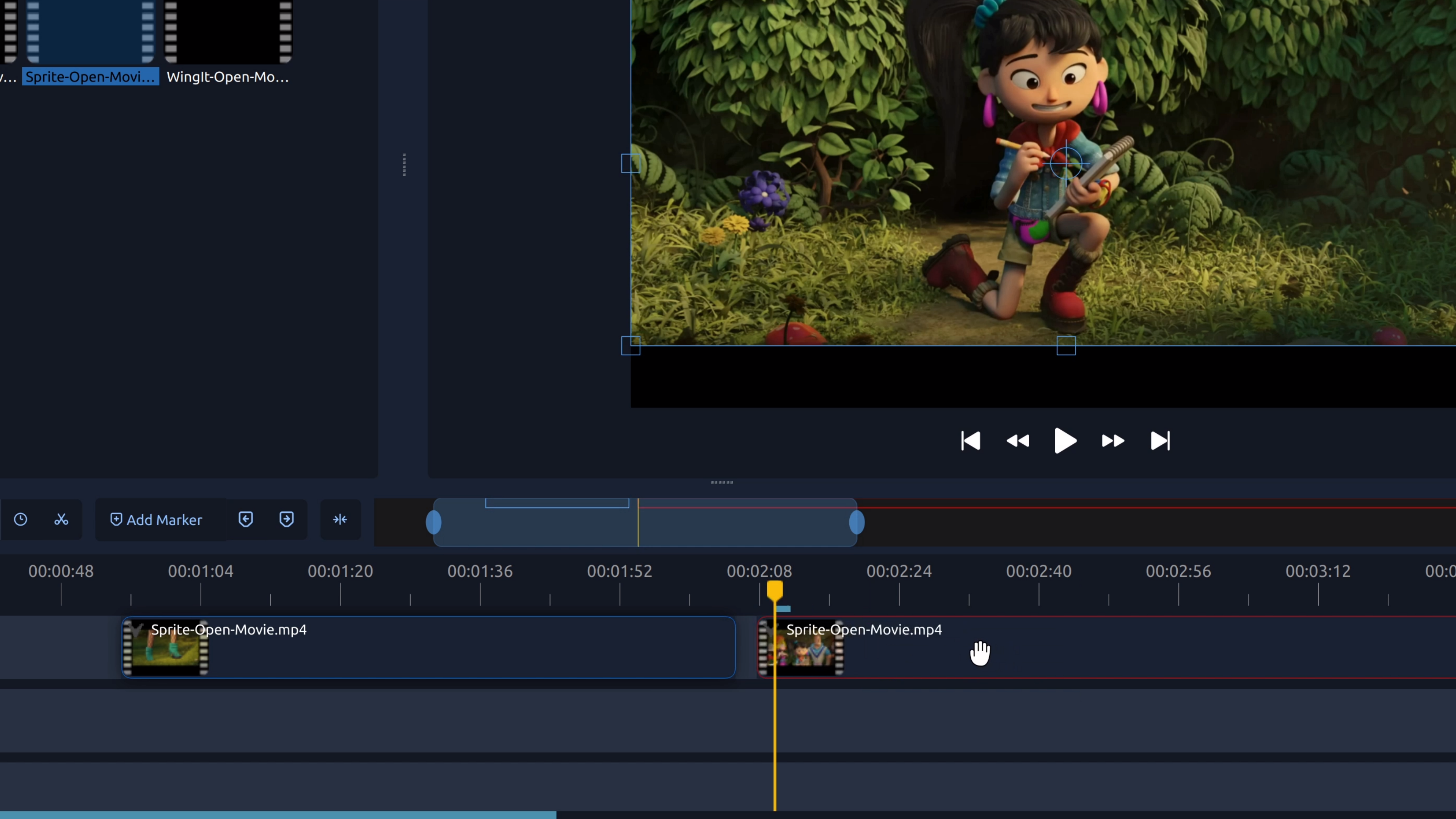
To remove part of a video from the middle, you split the clip at the start and end of the section you don’t want, then delete the unwanted piece.
Removing a section from the middle of a video is useful when you want to clean up footage without changing the beginning or end of a clip. This technique is commonly used to cut out mistakes, long pauses, or unwanted moments while keeping the rest of the video intact.
The easiest way to do this is by splitting the clip at two points—once at the start of the section you want to remove, and once at the end—then deleting the middle piece.
How to remove the middle of a video in OpenShot
- Add your clip to the timeline. Import your video and drag it onto a track.
- Move the playhead to the start of the section. Place it where the unwanted part begins.
- Split the clip. Right-click the clip and choose Slice, or use the slice tool.
- Move the playhead to the end of the section. Place it where the unwanted part ends.
- Split the clip again. This creates three separate pieces.
- Delete the middle piece. Click the unwanted section and press Delete.
Tip: Zoom in on the timeline before splitting to make sure your cuts are precise.
Try it in OpenShot
Cutting out unwanted sections is one of the fastest ways to improve a video. OpenShot makes it easy to split and delete parts of a clip visually on the timeline, so you can clean up your footage in seconds.