
20
Jan
How Do I Split a Clip?
Written by on in Video Editing Basics .
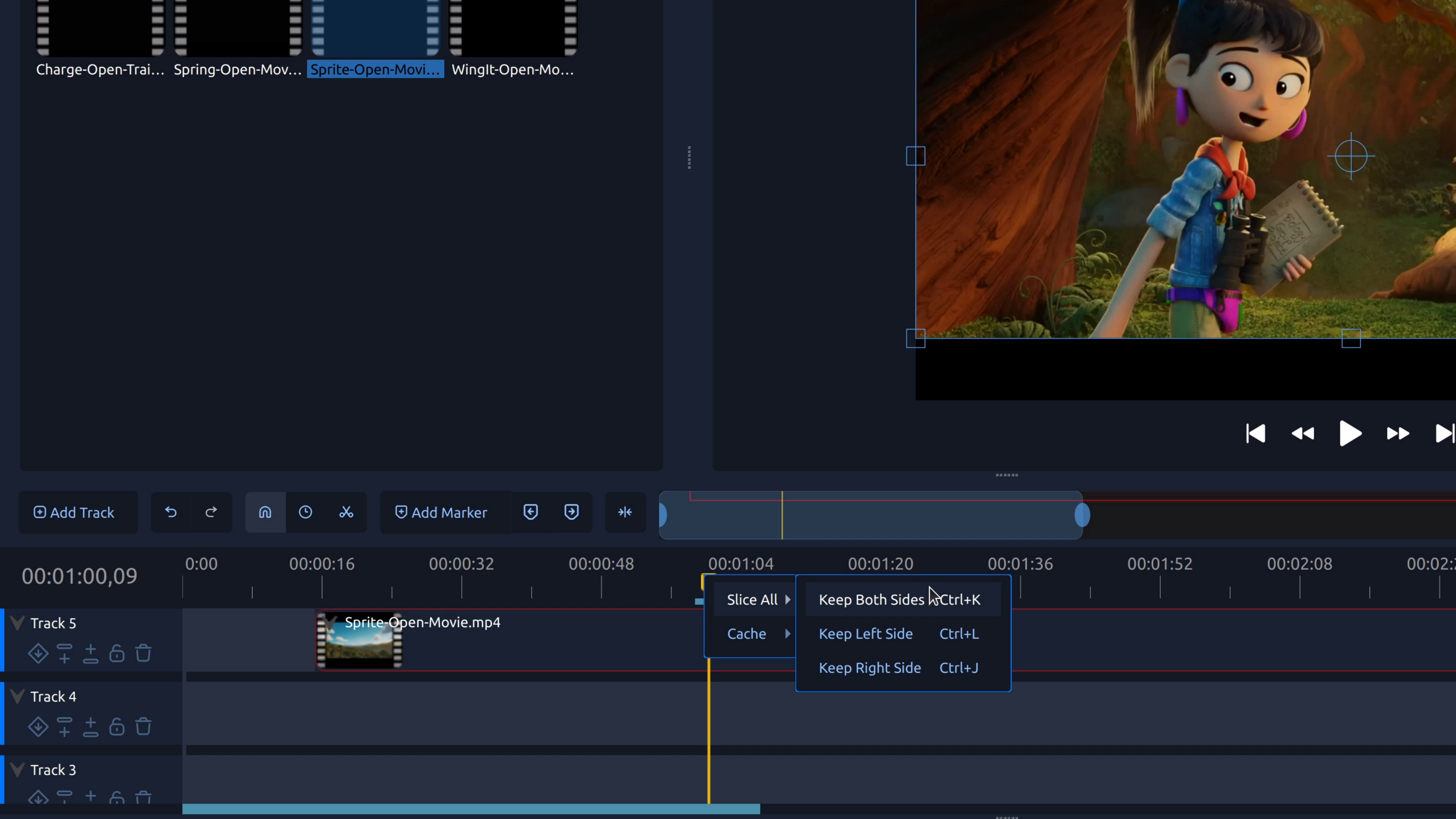
Splitting a clip lets you cut a video or audio clip into separate pieces so you can remove mistakes, tighten pacing, or add transitions.
Splitting a clip is used when you want to change or remove part of a video without affecting the rest of it. Instead of trimming the beginning or end, splitting allows you to work with individual sections of the same clip on the timeline.
What does “split a clip” mean in video editing?
When you split a clip, you create a cut at the playhead (the current timeline position). After the split, the original clip becomes two clips—each piece can be moved, trimmed, deleted, or edited on its own.
How to split a clip in OpenShot
- Add your clip to the timeline. Import your video (or audio), then drag it onto a track.
- Move the playhead to the cut point. Place it exactly where you want the split.
- Select the clip. Click the clip so it’s highlighted.
- Slice the clip. Right-click the clip and choose Slice, or use the slice tool.
- Choose the slice option. Select slicing at the playhead.
- Edit the new pieces. Move, trim, delete, or add a transition.
Tip: Zoom in on the timeline before slicing for more precise cuts.
Try it in OpenShot
If you’re new to editing, splitting clips is one of the fastest ways to improve pacing and remove mistakes. Download and install OpenShot Video Editor (free and open-source), then practice slicing a clip a few times—you’ll use this workflow in almost every project.