
Trimming a video is one of the quickest ways to clean up footage before you start making more detailed edits. It’s especially useful for removing awkward starts, long pauses, or extra seconds at the end of a clip so your video feels more polished.
What does it mean to trim a video?
When you trim a clip, you shorten it by adjusting its start point, end point, or both. Trimming removes unwanted frames from the edges of a clip without creating multiple pieces.
This makes trimming ideal for simple edits like removing dead space, false starts, or extra footage after the action is finished.
How to trim the start or end of a video in OpenShot
- Add your clip to the timeline. Import your video and drag it onto a track in the timeline.
- Select the clip. Click the clip so it’s highlighted.
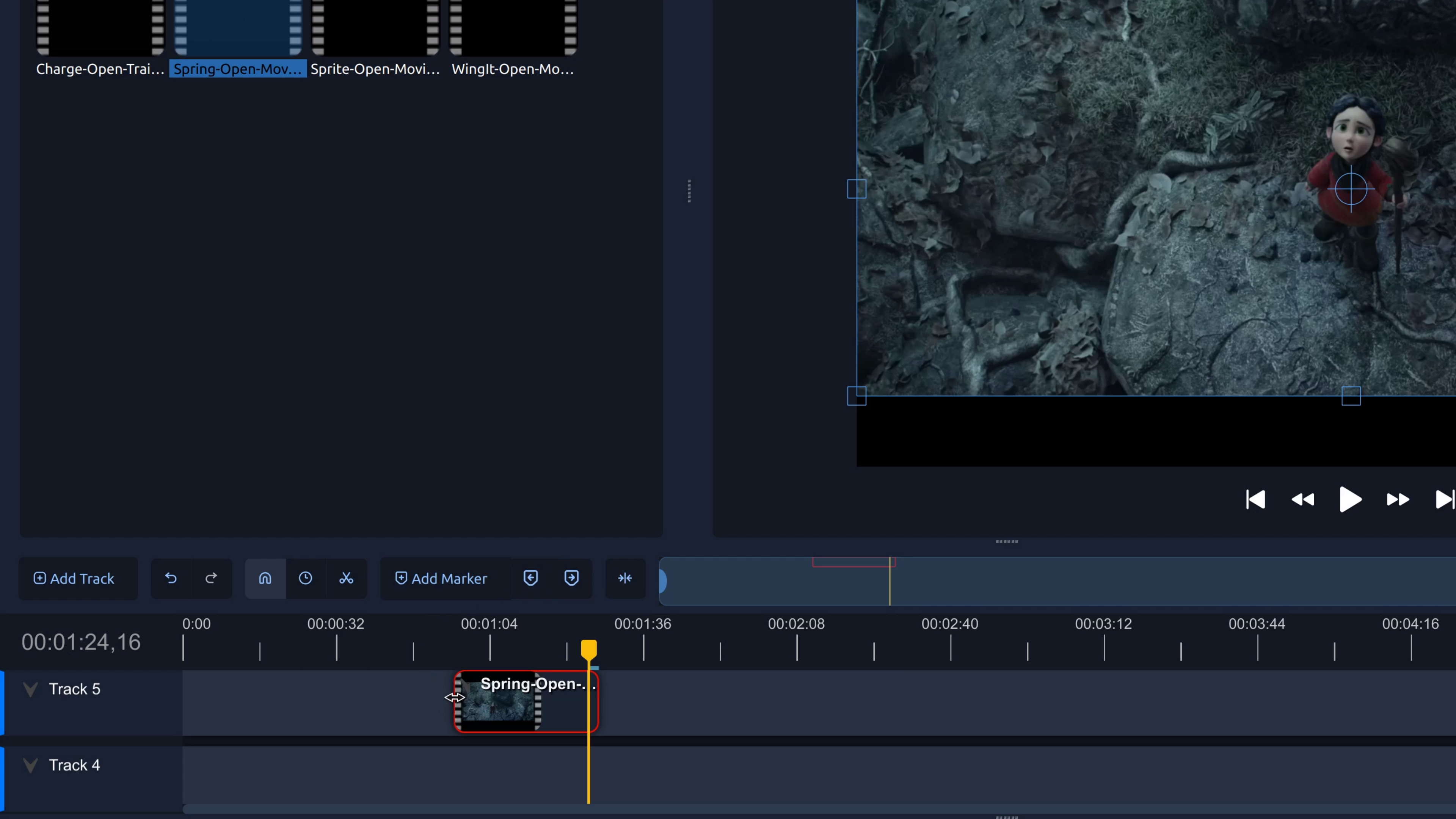
- Hover over the clip edge. Move your mouse to the beginning or end of the clip until the cursor changes to a resize icon.
- Click and drag to trim. Drag inward from the start to remove the beginning, or drag inward from the end to remove the ending.
- Preview your trim. Play the clip to check the timing. You can adjust the trim again at any time.
Tip: Zoom in on the timeline before trimming for more precise, frame-accurate edits.
When should I trim vs split?
- Trim when you only need to remove footage from the beginning or end of a clip.
- Split when you need to remove or rearrange something in the middle of a clip.
In most editing workflows, you’ll trim clips first and then split them later as your edit becomes more detailed. Both tools work together.
Try it in OpenShot
Trimming is fast and visual in OpenShot Video Editor, making it easy to clean up footage without complex menus or settings. Download and install OpenShot (it’s free and open-source), then practice trimming a few clips—you’ll use this skill in almost every video you create.