
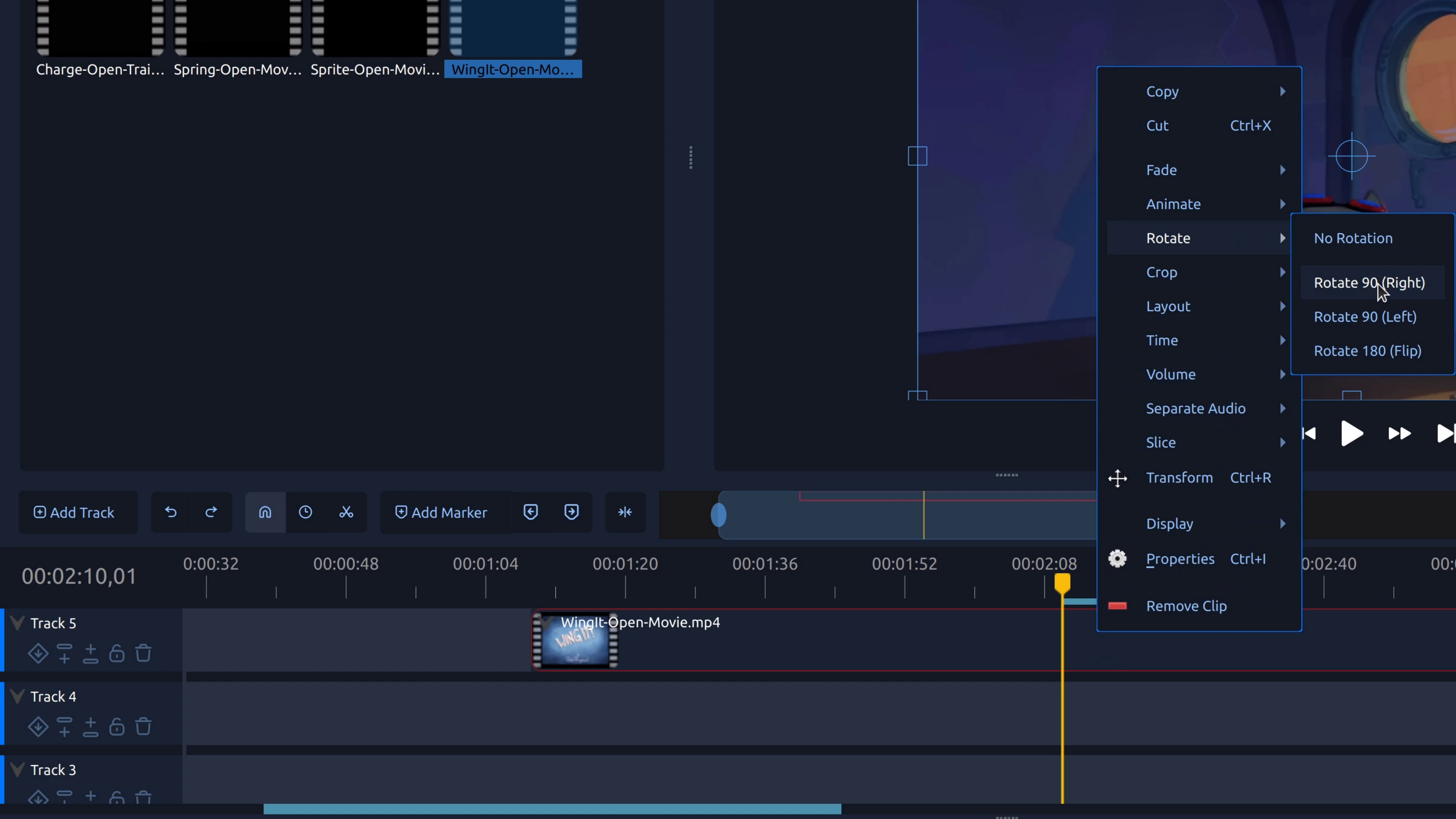
Rotating a video is most commonly needed when footage is recorded in the wrong orientation, especially on phones or handheld cameras. This lets you correct the angle of a clip without re-recording or changing the rest of your edit.
OpenShot lets you rotate a video visually using simple controls, making it easy to fix orientation issues in just a few steps.
How to rotate a video in OpenShot
- Add your clip to the timeline. Import your video and drag it onto a track.
- Select the clip. Click the clip so it’s highlighted.
- Open the clip properties. Right-click the clip and choose Properties.
- Adjust the rotation value. Change the rotation setting (for example, 90°, 180°, or 270°) until the video is oriented correctly.
- Preview the result. Play the video to confirm the rotation looks right.
Tip: If black bars appear after rotating, you may need to resize or scale the clip to fill the frame.
Try it in OpenShot
Fixing video orientation is quick and beginner-friendly in OpenShot. Rotate your clips to the correct angle, then continue editing without worrying about sideways or upside-down footage.